
- 12
- 2,008 words
Choosing the best video editing software for YouTube is one of the most important decisions a creator can make. Over the last 15 years, I’ve worked with hundreds of content creators, edited thousands of videos, managed production workflows for businesses, and helped YouTubers scale channels from a few hundred subscribers to six-figure audiences.
One lesson has remained consistent: great editing doesn’t just make videos look better it directly affects watch time, audience retention, upload consistency, and ultimately channel growth.
I still remember editing my early YouTube projects using basic free editors that constantly crashed during exports. A simple 10-minute video could take hours to finish. As I transitioned into professional production workflows using advanced tools, editing became faster, smoother, and far more creative. That shift alone significantly improved content quality and publishing consistency.
In this guide, I’ll share my real-world experience with the leading YouTube video editing software available in 2026. You’ll learn which tools are best for beginners, professionals, businesses, educators, gamers, and content creators looking to grow efficiently.
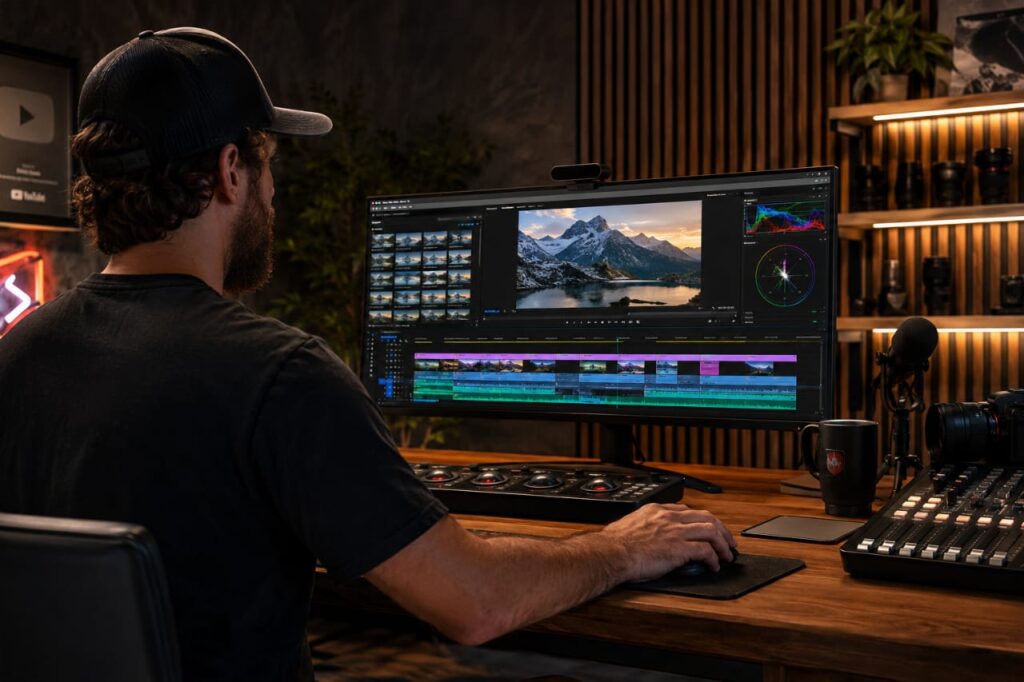
Why Choosing the Best Video Editing Software for YouTube Matters
Faster Editing Workflow
The biggest difference I notice between beginner and professional creators is workflow efficiency.
When your software allows keyboard shortcuts, proxy editing, multicam support, and fast rendering, you spend less time fighting technology and more time creating content.
A creator uploading three videos per week can save dozens of hours every month simply by using better editing tools.
Better Video Quality
Modern editing software offers superior color correction, transitions, motion graphics, sharpening, noise reduction, and export optimization.
Better visuals create a stronger first impression and improve viewer engagement.
Improved Audience Retention
Retention is one of YouTube’s most important ranking factors.
Features like jump cuts, animated captions, zoom effects, B-roll integration, and dynamic pacing become easier when using capable software.
Efficient Content Production
Many successful YouTubers produce content on tight schedules.
The right video editor for content creators helps automate repetitive tasks, speed up exports, and streamline publishing workflows.
Professional Branding
Consistent intros, lower-thirds, transitions, and graphics help establish a recognizable brand identity.
Professional software makes this process significantly easier.
Features to Look for in YouTube Video Editing Software
Multi-Track Editing
Multiple video and audio tracks provide flexibility for complex projects.
Color Grading Tools
Color correction improves visual consistency and professional appeal.
Motion Graphics Support
Animations, titles, and effects increase engagement.
Audio Editing Features
Audio quality often matters more than video quality.
Look for noise reduction, EQ controls, compression, and audio cleanup tools.
AI Editing Tools
Modern editors now include AI-powered:
- Auto captions
- Background removal
- Object tracking
- Smart reframing
- Scene detection
- Voice enhancement
Rendering Speed
Fast exports save valuable production time.
Hardware acceleration has become essential.
Export Presets for YouTube
Built-in YouTube presets simplify uploading and ensure proper quality settings.
Learning Curve
The most powerful software isn’t always the best choice if you can’t use it effectively.
Best Video Editing Software for YouTubers in 2026
Adobe Premiere Pro
Overview
For many years, Adobe Premiere Pro has been the industry standard for YouTube creators, agencies, and production companies.
Key Features
- Advanced timeline editing
- AI-powered editing tools
- Motion graphics integration
- Excellent plugin ecosystem
- Team collaboration
Ease of Use
Moderate learning curve.
Performance
Excellent on modern hardware.
Pricing
Subscription-based through Adobe.
Pros
- Industry standard
- Massive plugin library
- Excellent workflow integration
Cons
- Subscription cost
- Can be demanding on hardware
Best Use Cases
- Professional YouTubers
- Agencies
- Businesses
Personal Experience & Insights
Premiere Pro has been my primary editor for commercial YouTube projects. Its ecosystem remains unmatched when working with graphics, audio, and collaborative teams.
DaVinci Resolve
Overview
DaVinci Resolve has become my favorite recommendation for serious creators on a budget.
Key Features
- Hollywood-grade color grading
- Fusion VFX
- Fairlight audio suite
- AI tools
- Free version available
Ease of Use
Moderate to advanced.
Performance
Outstanding on powerful systems.
Pricing
Free version available. Studio version costs approximately $295 as a one-time purchase.
Pros
- Incredible free version
- Best color grading tools
- No subscription required
Cons
- Steeper learning curve
- Heavy system requirements
Best Use Cases
- Professional creators
- Filmmakers
- Gaming channels
Personal Experience & Insights
I frequently recommend Resolve to creators upgrading from beginner software. Its free version delivers capabilities that were once exclusive to expensive professional suites. It combines editing, color, VFX, and audio production in a single application.
Final Cut Pro
Overview
Final Cut Pro remains one of the fastest editing solutions available for Mac users.
Key Features
- Magnetic timeline
- Optimized Apple Silicon performance
- AI-assisted workflows
- Advanced media organization
Ease of Use
Easy to moderate.
Performance
Exceptional on modern Macs.
Pricing
Approximately $299 one-time purchase, with Apple also offering a Creator Studio subscription option.
Pros
- Extremely fast
- No mandatory subscription
- Optimized for macOS
Cons
- Mac-only
- Smaller plugin ecosystem
Best Use Cases
- Mac creators
- Vloggers
- Professional YouTubers
Personal Experience & Insights
On Apple Silicon Macs, Final Cut often delivers faster exports than competing software. For creators fully invested in the Apple ecosystem, it remains a top choice.
CapCut Desktop
Overview
CapCut has evolved from a mobile editor into a surprisingly capable desktop solution.
Key Features
- Auto captions
- Viral social media templates
- AI tools
- Simple workflow
Ease of Use
Very easy.
Performance
Lightweight and efficient.
Pricing
Free and premium plans available through CapCut.
Pros
- Beginner friendly
- Fast learning curve
- Excellent caption tools
Cons
- Limited advanced features
Best Use Cases
- New creators
- Shorts creators
- Social media content
Personal Experience & Insights
CapCut is currently one of the easiest ways for beginners to start producing quality YouTube content.
Filmora
Overview
Filmora bridges the gap between beginner and professional editing.
Key Features
- Drag-and-drop editing
- Effects library
- AI features
- Templates
Ease of Use
Easy.
Performance
Good.
Pricing
Mid-range.
Pros
- Beginner-friendly
- Quick learning curve
Cons
- Limited advanced controls
Best Use Cases
- New YouTubers
- Small businesses
Personal Experience & Insights
Filmora is one of the quickest tools to learn while still providing enough flexibility for growing channels.
CyberLink PowerDirector
Overview
PowerDirector offers strong performance and impressive feature depth.
Key Features
- AI editing tools
- Motion tracking
- Fast rendering
Ease of Use
Moderate.
Performance
Excellent.
Pricing
Subscription and perpetual options.
Pros
- Fast exports
- Feature-rich
Cons
- Interface can feel busy
Best Use Cases
- Intermediate creators
- Gaming content
Personal Experience & Insights
PowerDirector consistently surprises me with its rendering performance and efficient workflow.
Camtasia
Overview
Camtasia specializes in screen recording and educational content.
Key Features
- Screen capture
- Annotation tools
- Educational workflows
Ease of Use
Very easy.
Performance
Excellent for tutorials.
Pricing
Premium one-time purchase.
Pros
- Great for training content
- Beginner friendly
Cons
- Limited cinematic editing tools
Best Use Cases
- Educators
- Software tutorials
- Business training
Personal Experience & Insights
For tutorial channels and software demonstrations, Camtasia remains one of the most efficient tools available.
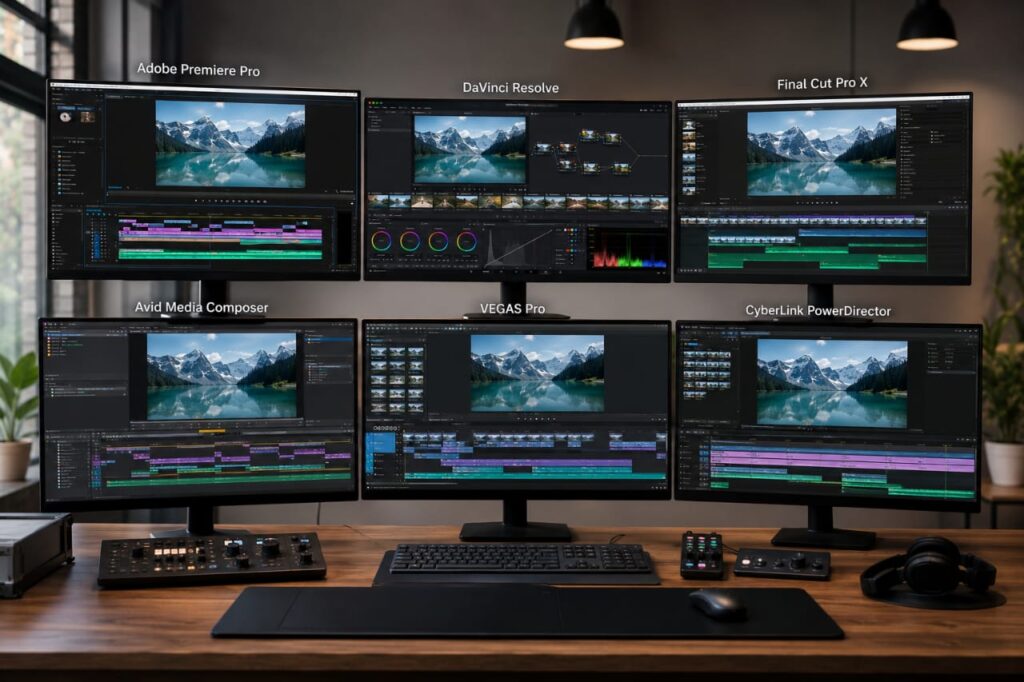
Video Editing Software Comparison Table
| Software | Best For | Ease of Use | Performance | Features | Pricing |
|---|---|---|---|---|---|
| Adobe Premiere Pro | Professionals | Moderate | Excellent | Outstanding | Subscription |
| DaVinci Resolve | Advanced Creators | Moderate-Advanced | Excellent | Outstanding | Free + Paid |
| Final Cut Pro | Mac Users | Easy-Moderate | Excellent | Excellent | One-Time |
| CapCut Desktop | Beginners | Easy | Good | Good | Free/Premium |
| Filmora | New Creators | Easy | Good | Good | Affordable |
| PowerDirector | Intermediate Users | Moderate | Excellent | Very Good | Flexible |
| Camtasia | Educators | Easy | Excellent | Specialized | Premium |
Best YouTube Video Editing Software for Different Creators
Best for Beginners
CapCut Desktop
Best for Vloggers
Final Cut Pro
Best for Gaming Channels
DaVinci Resolve
Best for Educational Content
Camtasia
Best for Professional YouTubers
Adobe Premiere Pro
Best for Businesses
Adobe Premiere Pro or DaVinci Resolve
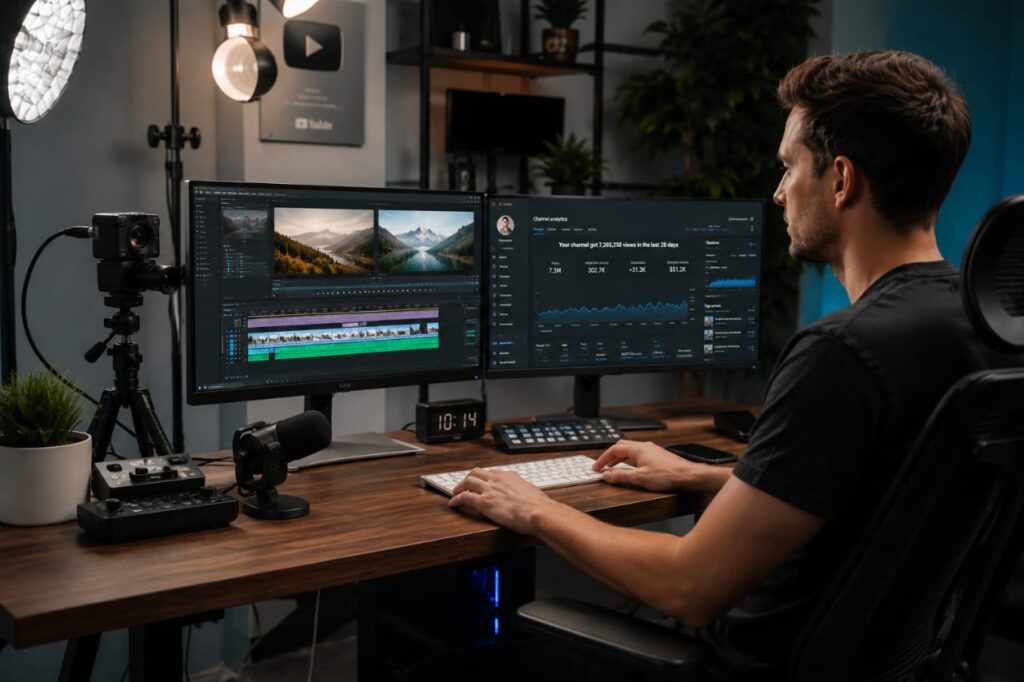
Beginner Video Editing Software for YouTube vs Professional Solutions
Learning Curve Comparison
Beginner tools prioritize simplicity.
Professional software prioritizes flexibility.
Feature Comparison
Professional editors offer:
- Advanced color grading
- Motion graphics
- Collaboration tools
- Complex workflows
Performance Comparison
Professional software handles large projects more efficiently.
Budget Considerations
Beginners often don’t need expensive subscriptions immediately.
Which Option Should You Choose?
Start simple and upgrade as your channel grows.
That’s exactly how many successful creators evolve.
Common Mistakes When Choosing YouTube Video Editing Software
Buying Based on Popularity Alone
Popular doesn’t always mean suitable.
Ignoring Hardware Requirements
Many creators underestimate system demands.
Choosing Overly Complex Tools
Complex software can slow growth.
Underestimating Audio Editing
Poor audio destroys viewer retention.
Focusing Only on Price
The cheapest option isn’t always the best value.
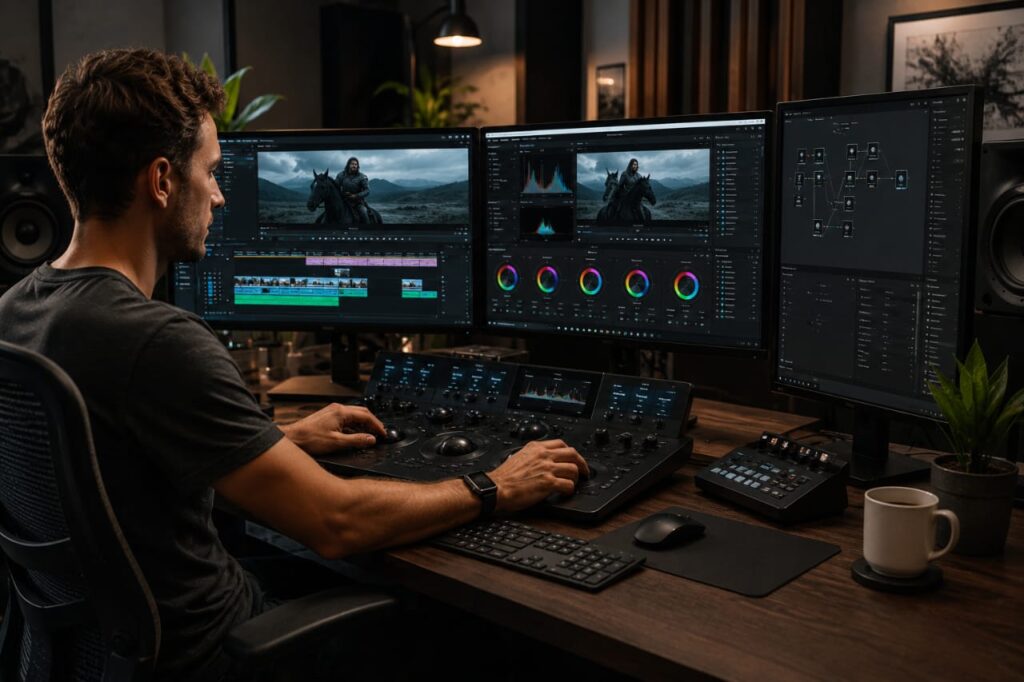
My Experience Using Different Video Editing Software Over 15 Years
Over the years, I’ve observed several clear trends.
Editing speed improves dramatically with workflow-focused software.
Stability matters more than flashy features. A crash during a major project costs time and money.
Rendering performance has improved tremendously thanks to GPU acceleration and AI-powered optimization.
The biggest challenge for most creators isn’t learning features it’s building an efficient editing workflow.
The creators who grow fastest usually aren’t the ones using the most expensive software. They’re the ones who consistently publish quality content using tools they understand deeply.
Which Video Editor Is Best for Content Creators in 2026?
New YouTubers
CapCut Desktop
Intermediate Creators
Filmora or PowerDirector
Professional Creators
Adobe Premiere Pro
Business Channels
Adobe Premiere Pro
Gaming Channels
DaVinci Resolve
Budget-Conscious Users
DaVinci Resolve Free
Frequently Asked Questions
What is the best video editing software for YouTube?
Adobe Premiere Pro and DaVinci Resolve are currently among the strongest overall options.
Which editor do most YouTubers use?
Many professional YouTubers use Adobe Premiere Pro due to its industry-standard workflow.
Is DaVinci Resolve better than Premiere Pro?
For color grading and value, Resolve often wins. For ecosystem integration and collaboration, Premiere remains strong.
What editing software is best for beginners?
CapCut Desktop and Filmora are excellent beginner choices.
Do I need paid software to start YouTube?
No. DaVinci Resolve Free and CapCut provide more than enough features for new creators.
Which software is best for gaming videos?
DaVinci Resolve is one of the best options for gaming content due to performance and advanced effects.
What computer specifications are needed for video editing?
For 1080p editing:
- Intel Core i5/Ryzen 5
- 16GB RAM
- SSD Storage
- Dedicated GPU recommended
For 4K editing:
- Intel Core i7/i9 or Ryzen 7/9
- 32GB RAM
- RTX-class GPU
- Fast NVMe SSD
Helpful Resources
- YouTube Creator Academy
- Adobe Premiere Pro
- Blackmagic Design DaVinci Resolve
- Apple Final Cut Pro
- CapCut Desktop Editor
Conclusion
After testing virtually every major YouTube video editing software platform over the last 15 years, one thing is clear: there is no single perfect editor for everyone.
If you’re a beginner, start with CapCut or Filmora. If you’re budget-conscious, DaVinci Resolve delivers exceptional value. Mac creators should strongly consider Final Cut Pro. Professional YouTubers, agencies, and businesses will continue to benefit from Adobe Premiere Pro’s mature ecosystem.
The best video editing software for YouTube is ultimately the one that matches your workflow, content style, technical skill level, and long-term growth goals. Choose a tool you can master, build efficient editing habits, and focus on consistently publishing valuable content. Great software helps but consistent creation is what truly grows a YouTube channel.
Author

razakh6402@gmail.com
Related Posts

Digital Payments: Future of Digital Payments, Payment Technology & Online Payment Trends (2026 Guide)
- 0
- 2,609 words
The way we pay for goods and services has changed more in the past decade than it did in the previous fifty...
Embedded Finance Explained: Complete Guide to Embedded Banking & Banking as a Service (2026)
- 0
- 2,288 words
Over the last fifteen years, I’ve watched financial services evolve from products that required customers to visit a bank into experiences seamlessly...

Contactless Payments Explained: Complete NFC Payment & Tap to Pay Guide (2026)
- 0
- 2,193 words
Over the past fifteen years, I’ve watched payment technology evolve from magnetic stripe cards and PIN terminals to today’s seamless contactless payments...
Neobank vs Traditional Bank: Complete Digital Banking Comparison Guide (2026)
- 0
- 2,379 words
The debate around neobank vs traditional bank has become more relevant than ever as digital banking continues to reshape how people manage...
Financial Planning Software: 10 Best Personal Financial Planning Software & Wealth Management Software (2026 Guide)
- 0
- 2,621 words
Managing money has changed dramatically over the past decade. When I first began advising clients more than 15 years ago, financial planning...
Best Expense Tracking Apps: Top Expense Tracker & Best Expense Management Software (2026 Guide)
- 2
- 2,595 words
Whether you’re running a startup, managing a growing business, freelancing full-time, or simply trying to control your personal finances, one thing remains...
12 comments